
Verified 15 September 2026.
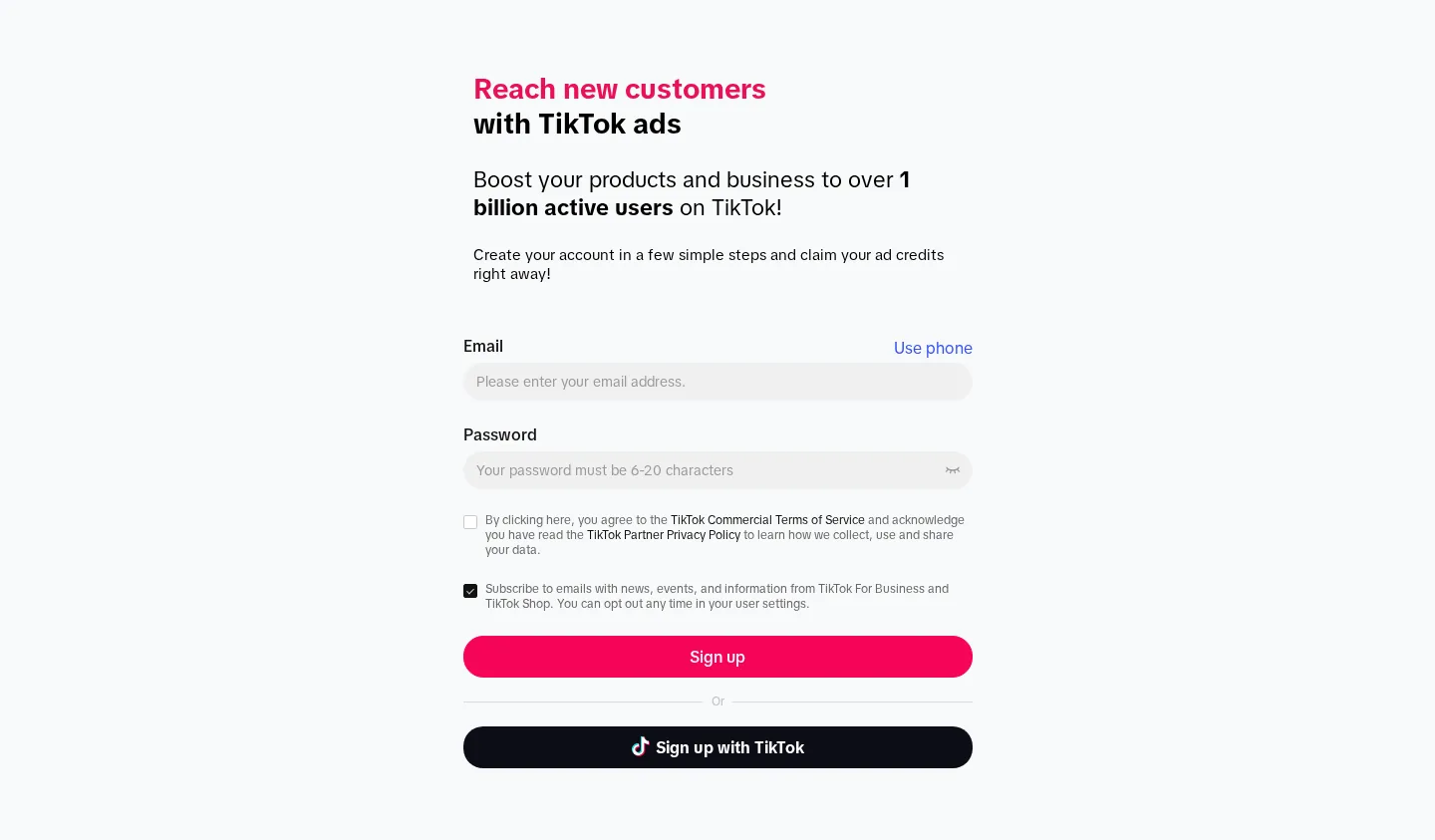
Most people lose the credit in step 1 or step 3. They sign up on ads.tiktok.com, or they add a card before the offer is visible.
This is the order that works.
Before step 1
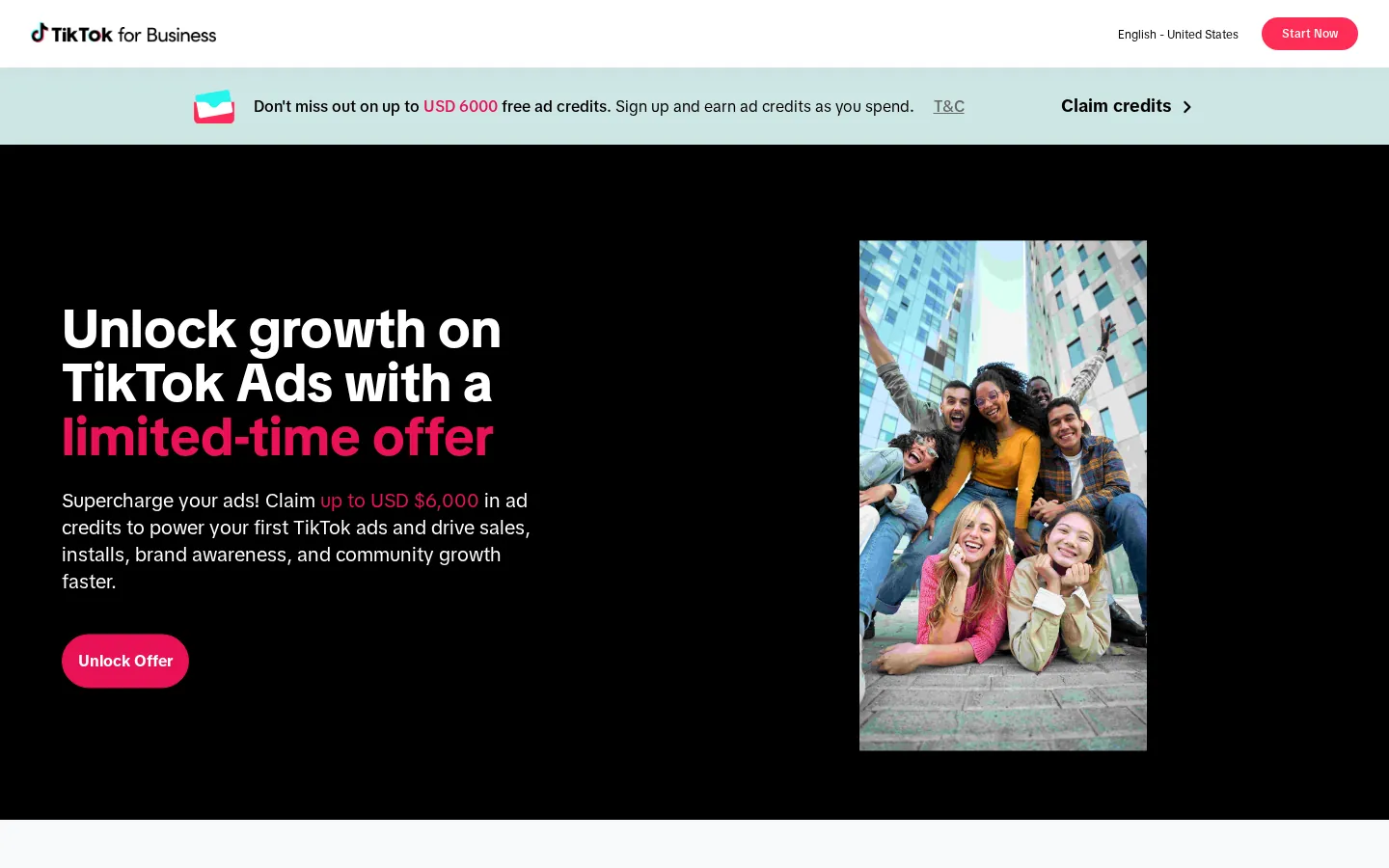
Do not register an account to “hold the offer” while you shoot creatives. The 30-day earning window starts at registration.
Have these live first:
- Landing page and checkout, or the lead form you will send traffic to
- Pixel + Events API firing a test event
- 15–30 native videos, or at least 8 if you are on the $200 tier
- A card or balance that can clear your target tier plus tax
- A decision on the tier. $200 is four days at the $50 campaign minimum. If you want a read, plan $500 or $1,000
Minimums you will hit whether you like them or not: $50 per day per campaign, $20 per day per ad group.
Step 1 — Partner link, not the marketing site
Open the partner landing page. Create the Ads Manager from that page.
Do not start on a cold ads.tiktok.com or getstarted.tiktok.com tab and hope to attach the offer later. The ladder is bound at account creation. Support usually cannot backfill it.
If you already have an advertiser account with any prior spend, stop. You are not new. Opening a second advertiser under the same TikTok For Business login does not reset eligibility.
Eligibility detail: who qualifies.
Step 2 — Confirm the offer is attached before you fund
Look for one of these the same day, before a card goes on the account:
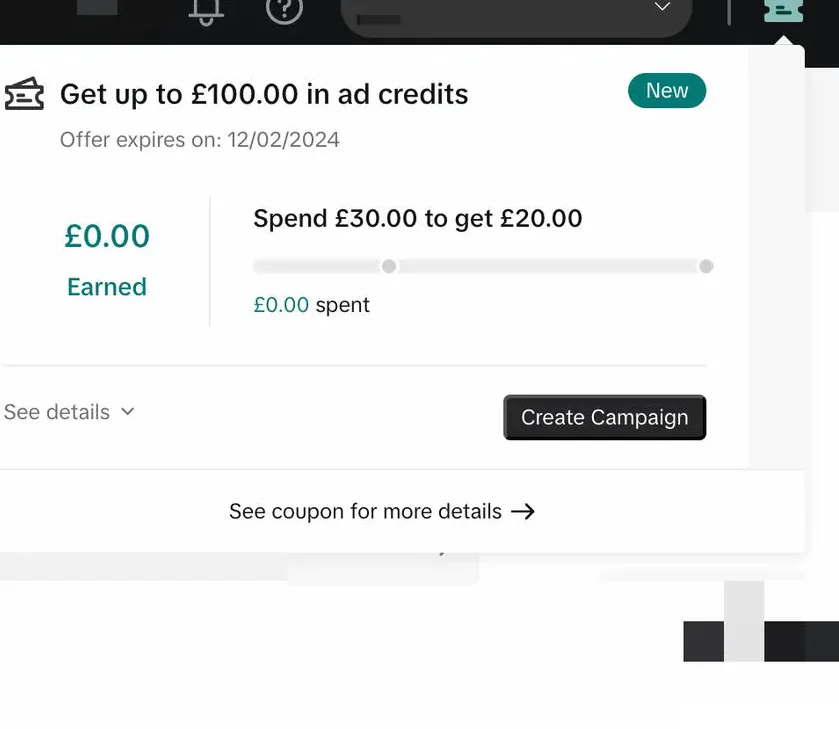
- Promotion banner on the Ads Manager home
- Ticket / coupon icon at the top right
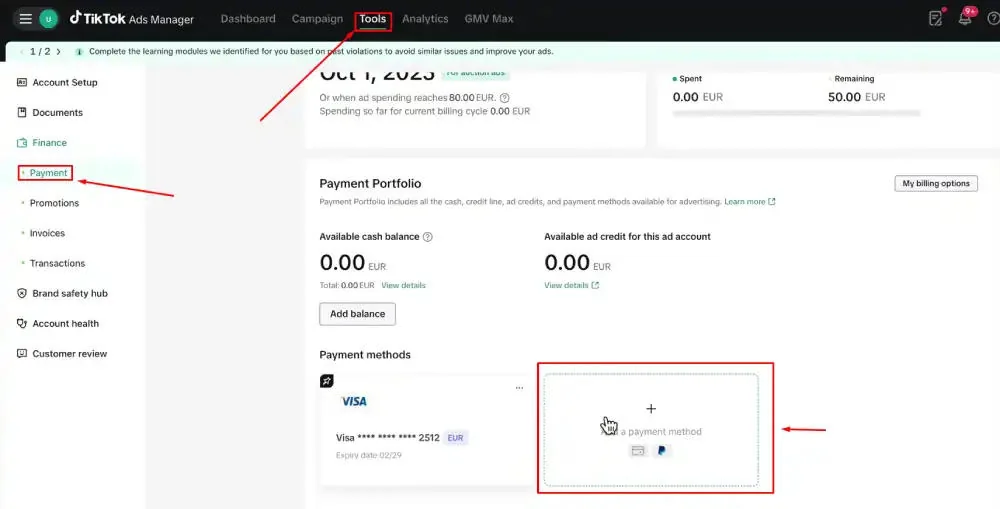
- Tools → Payments → Promotions (some builds: Tools → Settings → Billing → Promotions)
- An Earning tab with a progress bar and a spend threshold
If none of those exist, do not add a card. You built a clean account with no coupon. Funding it only starts a billing relationship.
Shop sellers on a different program check a different path: Seller Center → Marketing → Shop Ads → Ads Dashboard → Coupon Progress. That is not this ladder.
Step 3 — Local registration and a payment method that will clear
Coupon Terms require the Ads Manager to be registered in your local region. Do not set country = US because the headline is in dollars if the business is in Vietnam.
Add a payment method TikTok accepts in that region. Some prepaid and virtual BIN cards pass the billing check and then fail promotion review. If a card is going to fail, you want it to fail before you spend $1,000.
Save a screenshot of the account country, time zone, and advertiser ID (the 10-digit number). You will need the ID if you ever touch the AMEX track. You will need the screenshot if you appeal.
Step 4 — Load more than the tier
Tax does not count as qualifying spend. Promo credit does not count as qualifying spend. Only the paid bill amount or consumed top-up counts.
| Tier you want | Load at least | Why |
|---|---|---|
| $200 | $220–$230 | Tax + a bid that overshoots |
| $500 | $550–$580 | Same |
| $1,000 | $1,100 | Same |
| $4,000 | $4,350–$4,500 | Same |
| $6,000 | $6,300–$6,500 | Same, and you want to cross the line cleanly so the instant payout fires |
Delivery pauses when the next bid cannot clear a near-empty balance. That pause can leave you $40 under a tier with three days left and no easy way to drip the rest without overshooting.
Step 5 — Launch inside the window, on Ads Manager campaigns only
Window = registration date + 30 days. Not “30 days from first spend.” Not “30 days from first approved ad.”
What counts:
- In-Feed, Spark, Search, Lead Generation, App, Catalog — Ads Manager campaigns billed to this advertiser ID
- Out-of-pocket cash / consumed top-up after the offer attached
What does not count:
- TikTok Promote spend inside the consumer app
- Tax
- Credit you have not earned yet
- Spend on a sibling advertiser ID
- Spend before a regional code was activated (code track only — coupon page, redeem section)
Do not try to use hoped-for credit to climb to the next tier. Only cash spend climbs. Highest tier only. $5,900 cash is the $4,000 tier.
Campaign setup that does not waste the clock: pricing, Creative Center.
Step 6 — Watch Coupon Progress, not your inbox
TikTok often does not email you when a tier is close or when credit posts.
Path A — self-serve Ads Manager
Tools → Payments (or Billing) → Promotions
Tabs: Available / Earning / Not available
Path B — ticket icon Top right → coupon card → Details
Path C — Shop (different program) Seller Center → Marketing → Shop Ads → Ads Dashboard → Coupon Progress
Fields to read and screenshot:
- Ad credit name
- Discount / Amount
- Credit type (Free / Assignable / Conditional)
- Unused amount / Used amount
- Valid dates / expiration
- Restrictions (campaigns, products, countries)
- Earning window end
If the credit is assignable, an admin must attach it to campaigns before it spends. New-advertiser ladder credit is usually free credit and auto-applies. Read the row. Do not assume.
Step 7 — When credit lands, spend it before it expires
| Tier | When TikTok issues | What you do |
|---|---|---|
| $200 / $500 / $1,000 / $4,000 | After the 30-day window closes. Typically 1–7 business days after day 31 | Do not empty the cash balance on day 30 assuming credit will cover day 31–38. It might not be there yet |
| $6,000 | When you cross $6,000. Often 1–3 business days | This is the only tier that does not force a dark week |
Credit spends before cash. When Unused amount hits $0, the card is charged with no notification. Set a campaign cap under the remaining credit. Pause yourself.
Expiry is the date on the card. Partner pages often print 31 March of the following year. Believe the card.
Official terms worth remembering: credit applies to future ad costs, not costs already accrued. Credit cannot be sold, transferred, or withdrawn as cash. Cashback vs credit.
If the credit does not show
Work this list in order. Full page: credit not showing.
- Offer never attached. Wrong entry URL. No banner on day 0.
- Prior spend, or a Business Center sibling already claimed.
- Shop-linked exclusion.
- Window still open on a $200–$4,000 tier. You are waiting for day 31. Do not open a ticket on day 12.
- You spent tax-heavy or left $40 under the line.
- You ran Promote, not Ads Manager.
- You activated a regional code late, and pre-activation spend was excluded.
- Risk-control freeze. Appeal in the same Promotions UI. Attach the screenshots from the next section.
- Credit is assignable and sitting unallocated.
- Credit posted and already spent because free credit consumes first.
Screenshot file you should keep
If you appeal, or if a partner asks for proof, this is the pack:
- Signup URL (the partner page, not a later ads.tiktok.com session)
- Date and time the advertiser ID was created
- Promotions Earning tab on day 0
- Daily spend export or Billing transactions for the 30 days
- Promotions Available tab after issuance
- Restrictions / expiration on the card
Name the files with the date. 2026-09-15-earning-tab.png is usable six months later. screenshot.png is not.